
October 24, 2026 · Anaheim Cell Phone Repair Blog
What Ghost Touch Means on an iPhone or Samsung Screen
Ghost touch can open apps, type, scroll, or press buttons without your finger. Learn how to protect your passcode and identify whether the protector, screen, frame, or liquid is involved.
The direct answer
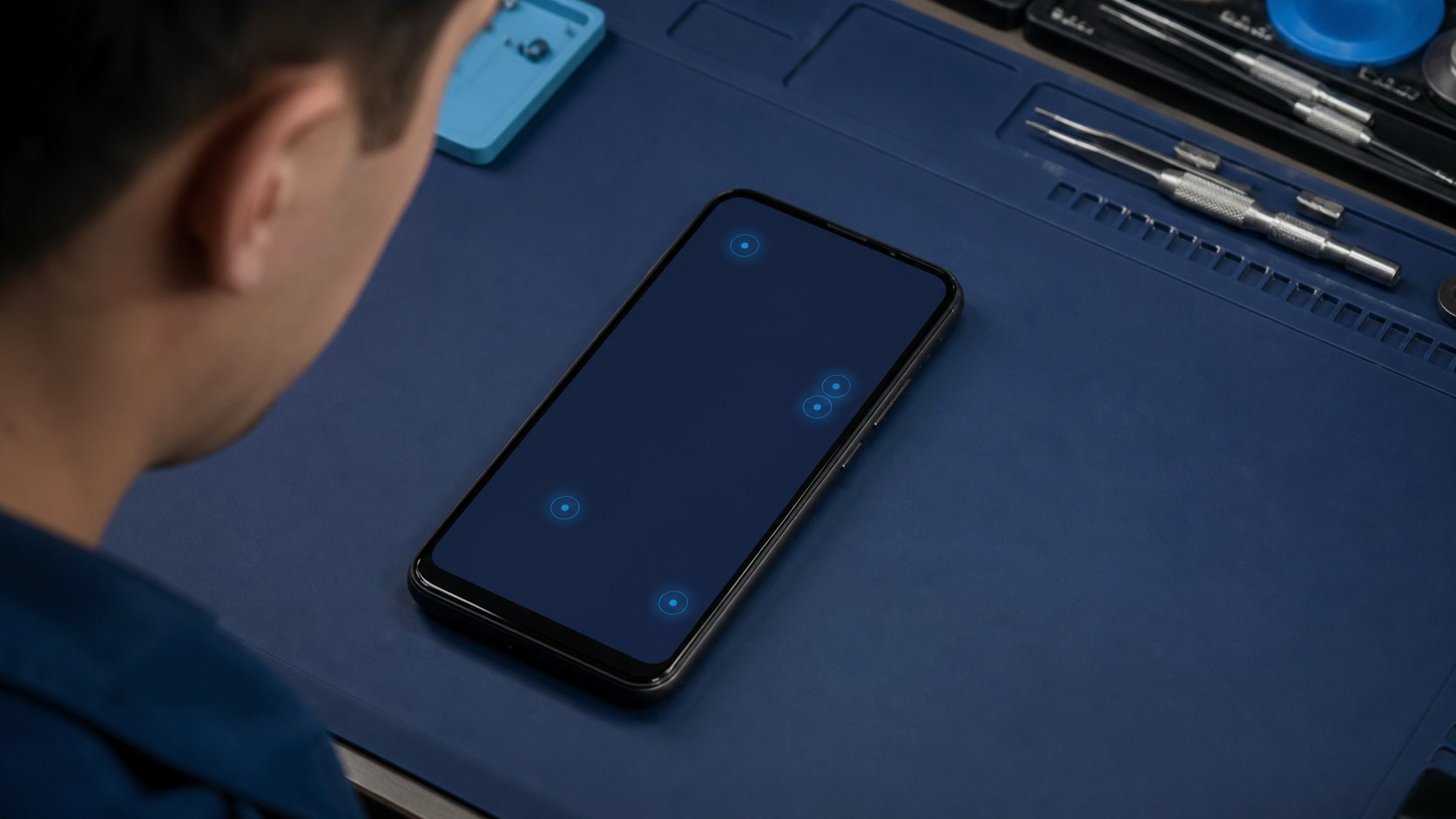
Ghost touch describes input the phone registers even though you did not intentionally touch that location. The screen can open apps, type characters, scroll, or press buttons by itself. Because repeated wrong passcode entries can lock access and accidental taps can change settings or place calls, ghost touch is more than a visual annoyance.
The practical goal is not to guess a part from one sentence. It is to identify the exact behavior, protect the phone and its data, rule out safe external causes, and decide whether manufacturer, carrier, accessory, software, or repair-shop help is the right next step. That order can prevent unnecessary parts and gives a technician a clearer starting point.
Describe the pattern before changing the phone
Notice whether unintended taps stay in one screen region, begin only while charging, stop after a case is removed, or follow a drop, cracked glass, replacement screen, liquid, heat, or frame bend. Also record dead zones where intentional touch does not work. A short video from another device can document the behavior safely.
Write the observation in plain language: what you were doing, what changed, what still works, and what makes it better or worse. Include the exact model rather than only “iPhone” or “Galaxy,” because display construction, ports, buttons, cameras, batteries, flex cables, and biometrics vary. If another person helps reproduce the issue, protect private messages, photos, notifications, and account information from the recording.
Why more than one cause can look the same
A poor screen protector, moisture on the surface, damaged touch layer, display assembly failure, loose connection, frame pressure, incompatible charger, liquid residue, or board-level touch fault can create random input. iPhone and Galaxy designs process touch differently, and folding Galaxy displays add hinge and inner-screen considerations.
A symptom page can explain likely categories, but it cannot confirm which component has failed. Two phones with the same customer description may need completely different work. One might have an accessory or obstruction issue, another a modular part failure, and another a connection or board problem. The history of impact, liquid, heat, prior repair, and software change helps determine which tests are useful first.
Safe checks you can do first
Disconnect the charger, dry the exterior, remove only a loose or visibly damaged protector, and clean the glass with a dry microfiber cloth. Restart once when the phone is cool and dry. Back up promptly if you can control the screen, and use another trusted device to secure important accounts if random input becomes severe.
Keep tests short and reversible. Use only accessories that are compatible and in good physical condition. If the phone is usable, make a current cloud or computer backup and confirm its date. Keep account passwords, carrier PINs, and banking credentials private. A technician may need you to unlock the phone for a supervised functional test, but that is different from sharing account credentials.
What not to do
Do not keep entering the passcode while the phone taps by itself. Avoid pressing harder, flexing the frame, applying liquid screen cleaner near cracks, or using a charger that triggers the behavior. Power the phone down when accidental input could erase data, call emergency services, or change account security.
Internet shortcuts often hide the symptom briefly or add damage. Opening the phone without the right parts, adhesive, tools, and model instructions can affect cables, seals, batteries, and biometrics. A factory reset can erase local information and should not be the first response when the symptom may be hardware-related or when the data has not been backed up.
What a useful diagnosis checks
ACPR can test the touch grid, display image, frame pressure, charging accessories, connector condition, and liquid or impact history. Comparing the symptom with a known-good display when appropriate can separate screen assembly failure from a deeper touch-control problem.
A useful result explains what was observed, what was ruled out, which repair path is supported, and what remains uncertain. Ask whether the suggested work addresses the symptom you reported, whether other damaged functions were found, what data precautions apply, and what price, timing, part, and warranty terms apply to your exact repair before authorizing it.
Example repair paths ACPR may discuss
Possible repair paths include protector removal, screen assembly replacement, connector reseating or repair, frame assessment, charging-accessory replacement, liquid treatment, or board-level touch diagnosis. The recommendation depends on whether touch, image, and power symptoms occur together.
These examples are possibilities, not promises. ACPR does not quote a universal outcome from a web page because condition and model matter. If testing shows that a carrier account, application, accessory, or manufacturer-specific software process is the better next step, a clear referral can be more useful than replacing hardware that tested normally.
Prepare for a productive visit
Bring the phone powered down if safe, its normal charger if charging triggers the problem, and any video showing the taps. Back up before service if the display can be controlled. Tell ACPR about previous screen repairs and whether Face ID, fingerprint, stylus, or edge touch changed at the same time.
Remove payment cards and personal accessories unless they help reproduce the problem. Photograph the outside condition when practical. If the phone is used for work, authentication, travel, or health access, plan for the possibility that it may need to remain powered down or at the shop during diagnosis. Do not rely on a damaged phone as the only copy of critical information.
Check current official instructions
Use current Apple or Samsung model guidance for restarting and backing up. Avoid third-party calibration apps that claim to repair damaged touch hardware; software cannot reconnect a torn flex or heal an internally damaged panel.
Official instructions are especially important for button combinations, recovery screens, moisture protections, software updates, backups, and account locks. Read the warning text before selecting any action. “Update,” “repair,” “reset,” and “restore” are not interchangeable, and some paths may remove data or require the owner’s account access.
Anaheim and Orange County repair help
Anaheim Cell Phone Repair serves customers who need a local explanation of a phone symptom before deciding on service. Start with the page that matches the device and problem: iPhone touch symptom page, Galaxy touch symptom page, or book screen diagnosis. Share the exact model, what changed, what still works, and any drop, liquid, heat, charging, or previous-repair history.
Call **(714) 202-6732** when you prefer to speak with the shop, use the text page when a photo or short symptom description is more useful, or reserve a visit through the booking page. ACPR confirms the model, diagnosis, repair recommendation, current price, timing, and applicable repair terms before authorized work begins.