October 14, 2026 · Anaheim Cell Phone Repair Blog
Why an iPhone Screen Turns Green or Shows Colored Lines
A green-tinted iPhone screen or bright vertical lines can follow display damage, pressure, liquid, or an internal connection problem. Learn what to record and what repair may involve.
The direct answer
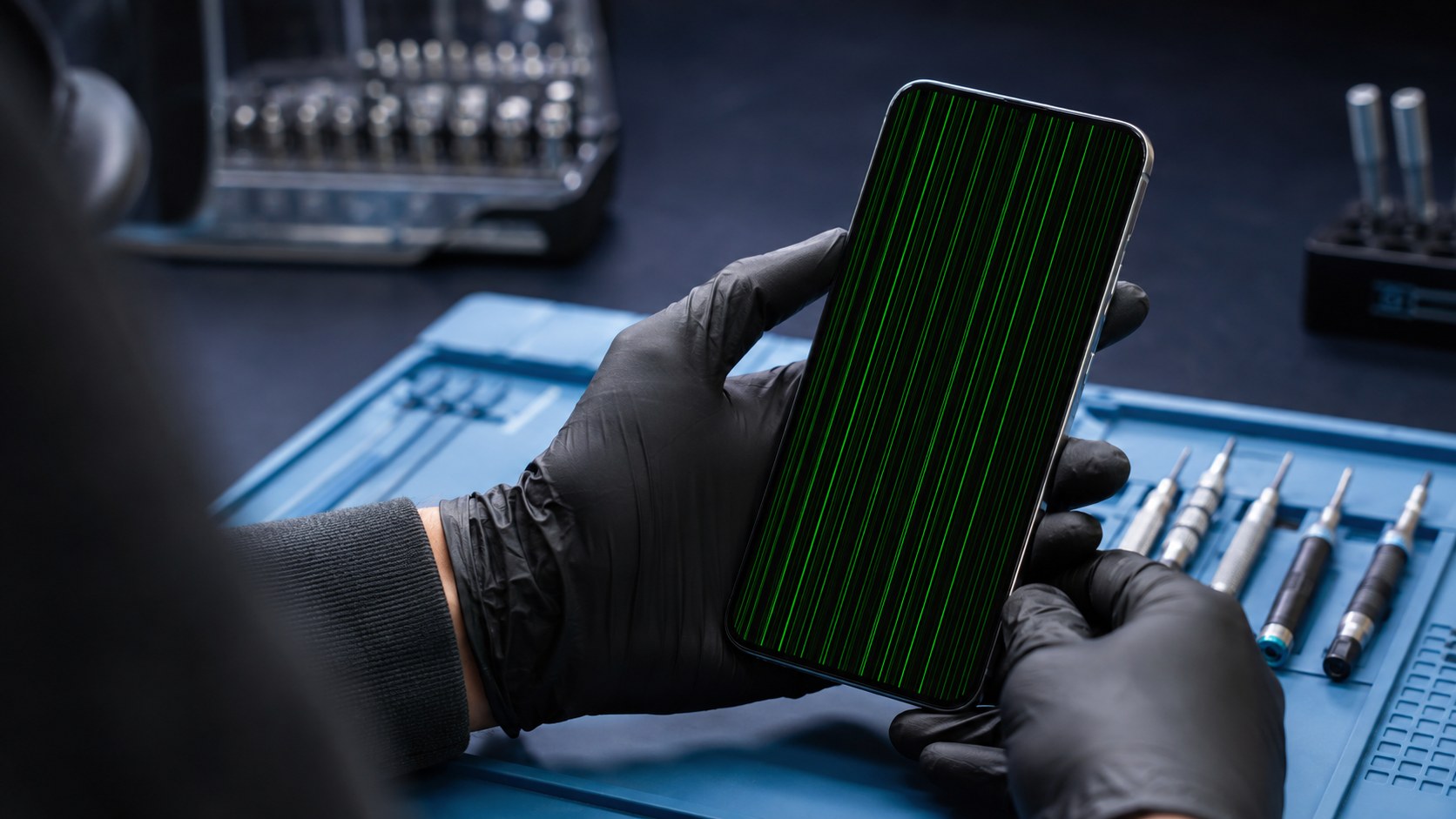
A green wash, green flash, or bright vertical line usually tells you that the phone is producing an image but the display path is not behaving normally. The cause can be inside the OLED or LCD assembly, at a display connection, or in circuitry that supplies image or power signals. A screenshot may look normal on another device even while the physical screen looks green, which is a useful clue but not a complete diagnosis.
The practical goal is not to guess a part from one sentence. It is to identify the exact behavior, protect the phone and its data, rule out safe external causes, and decide whether manufacturer, carrier, accessory, software, or repair-shop help is the right next step. That order can prevent unnecessary parts and gives a technician a clearer starting point.
Describe the pattern before changing the phone
Note whether the tint covers the whole panel, appears only at low brightness, follows a drop, grows from one edge, or comes with black spots and failed touch. Also note whether the iPhone still rings, vibrates, takes screenshots, connects to a computer, and responds to buttons. Those details help distinguish a display problem from a phone that is no longer running normally.
Write the observation in plain language: what you were doing, what changed, what still works, and what makes it better or worse. Include the exact model rather than only “iPhone” or “Galaxy,” because display construction, ports, buttons, cameras, batteries, flex cables, and biometrics vary. If another person helps reproduce the issue, protect private messages, photos, notifications, and account information from the recording.
Why more than one cause can look the same
Impact can damage display layers without leaving a large outer-glass crack. Frame pressure, bending, liquid residue, a disturbed display connector, or ordinary component failure can create similar colors. Software or accessibility color settings are possible, but a line fixed in one physical location or damage that began after impact points more strongly toward hardware inspection.
A symptom page can explain likely categories, but it cannot confirm which component has failed. Two phones with the same customer description may need completely different work. One might have an accessory or obstruction issue, another a modular part failure, and another a connection or board problem. The history of impact, liquid, heat, prior repair, and software change helps determine which tests are useful first.
Safe checks you can do first
If the phone is cool, dry, and physically intact, compare the issue at two brightness levels and restart it once. Take a screenshot and view that screenshot on another device if possible. Back up the phone while you can still navigate it. Remove only an easy-to-remove case or protector that is visibly pressing on an edge; do not peel lifting glass or disassemble the phone.
Keep tests short and reversible. Use only accessories that are compatible and in good physical condition. If the phone is usable, make a current cloud or computer backup and confirm its date. Keep account passwords, carrier PINs, and banking credentials private. A technician may need you to unlock the phone for a supervised functional test, but that is different from sharing account credentials.
What not to do
Do not squeeze or massage the screen, twist the frame, heat the phone, or repeatedly cycle brightness in an attempt to clear the line. These tricks cannot heal damaged display material and pressure can make a dark patch spread. Stop charging or using the phone if the screen is lifting, the device is unusually hot, or liquid exposure is recent.
Internet shortcuts often hide the symptom briefly or add damage. Opening the phone without the right parts, adhesive, tools, and model instructions can affect cables, seals, batteries, and biometrics. A factory reset can erase local information and should not be the first response when the symptom may be hardware-related or when the data has not been backed up.
What a useful diagnosis checks
ACPR can compare the visible pattern with touch response, frame condition, display connections, and signs of impact or liquid. A known-good display may be used during diagnosis when appropriate. The goal is to determine whether a complete screen assembly, a connection repair, or deeper display-power diagnosis is supported before a part is recommended.
A useful result explains what was observed, what was ruled out, which repair path is supported, and what remains uncertain. Ask whether the suggested work addresses the symptom you reported, whether other damaged functions were found, what data precautions apply, and what price, timing, part, and warranty terms apply to your exact repair before authorizing it.
Example repair paths ACPR may discuss
Possible repair paths include display assembly replacement, connector inspection, frame correction when practical, liquid-damage assessment, or board-level display diagnosis. No single colored line proves which path is required. Exact model, physical condition, part availability, and related Face ID or camera behavior all matter to the recommendation.
These examples are possibilities, not promises. ACPR does not quote a universal outcome from a web page because condition and model matter. If testing shows that a carrier account, application, accessory, or manufacturer-specific software process is the better next step, a clear referral can be more useful than replacing hardware that tested normally.
Prepare for a productive visit
Bring the exact iPhone model and describe when the color first appeared. If the phone was dropped, bent, wet, or repaired previously, include that history. Keep your Apple Account password private, but be ready to unlock the device yourself if functional testing is needed. Bring a current backup whenever the screen still allows one.
Remove payment cards and personal accessories unless they help reproduce the problem. Photograph the outside condition when practical. If the phone is used for work, authentication, travel, or health access, plan for the possibility that it may need to remain powered down or at the shop during diagnosis. Do not rely on a damaged phone as the only copy of critical information.
Check current official instructions
Apple support information and menus can change by iOS version and model. Use Apple’s current support pages for model-specific restart or backup instructions, and choose an update rather than an erase action when the objective is to preserve data.
Official instructions are especially important for button combinations, recovery screens, moisture protections, software updates, backups, and account locks. Read the warning text before selecting any action. “Update,” “repair,” “reset,” and “restore” are not interchangeable, and some paths may remove data or require the owner’s account access.
Anaheim and Orange County repair help
Anaheim Cell Phone Repair serves customers who need a local explanation of a phone symptom before deciding on service. Start with the page that matches the device and problem: iPhone green-line symptom page, iPhone screen repair options, or book a repair. Share the exact model, what changed, what still works, and any drop, liquid, heat, charging, or previous-repair history.
Call **(714) 202-6732** when you prefer to speak with the shop, use the text page when a photo or short symptom description is more useful, or reserve a visit through the booking page. ACPR confirms the model, diagnosis, repair recommendation, current price, timing, and applicable repair terms before authorized work begins.