October 28, 2026 · Anaheim Cell Phone Repair Blog
Why a USB-C Phone Port Feels Loose or Disconnects
A USB-C cable that falls out or disconnects can be caused by the cable, packed lint, bent contacts, corrosion, or a worn charging port. Inspect it without digging.
The direct answer
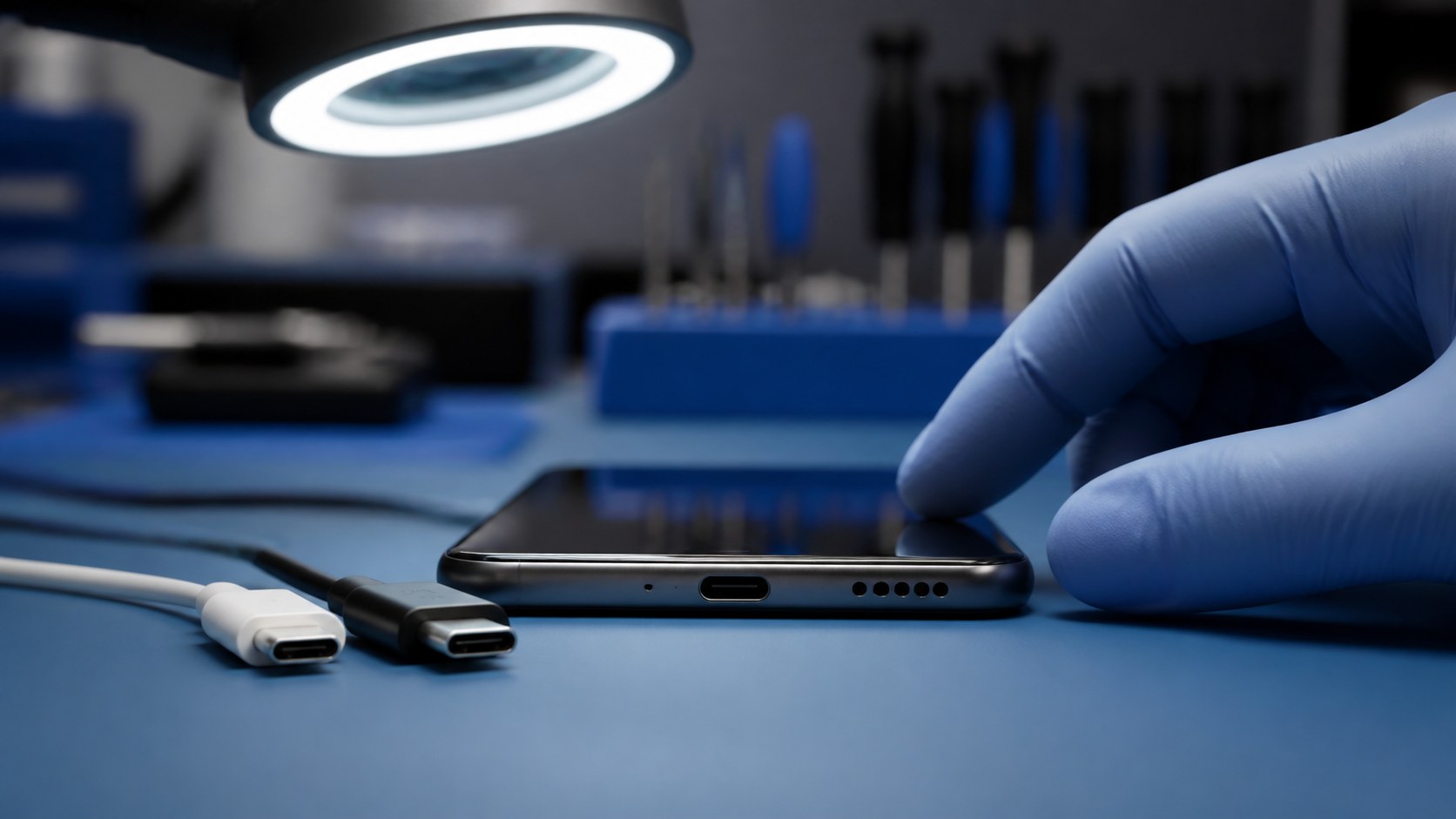
A USB-C plug should seat consistently without being held at a special angle. When it falls out, wiggles excessively, disconnects when touched, or stops fast charging, the cause may be the cable rather than the phone. Packed pocket lint can also prevent full insertion, while worn contacts, corrosion, impact, or port damage can create the same feeling.
The practical goal is not to guess a part from one sentence. It is to identify the exact behavior, protect the phone and its data, rule out safe external causes, and decide whether manufacturer, carrier, accessory, software, or repair-shop help is the right next step. That order can prevent unnecessary parts and gives a technician a clearer starting point.
Describe the pattern before changing the phone
Compare more than one known-good compatible cable and adapter. Note whether the plug reaches the same depth, whether both orientations behave alike, whether charging changes while the phone is off, and whether a moisture warning appears. Heat, discoloration, smell, or visible bent contacts are reasons to stop testing.
Write the observation in plain language: what you were doing, what changed, what still works, and what makes it better or worse. Include the exact model rather than only “iPhone” or “Galaxy,” because display construction, ports, buttons, cameras, batteries, flex cables, and biometrics vary. If another person helps reproduce the issue, protect private messages, photos, notifications, and account information from the recording.
Why more than one cause can look the same
Cable connector wear is common and inexpensive to rule out. Debris can compact at the back of the port after months in a pocket. Liquid residue can corrode contacts. Repeated sideways strain, using the phone while plugged in, drops with a cable attached, or ordinary wear can damage the USB-C assembly or nearby board connections.
A symptom page can explain likely categories, but it cannot confirm which component has failed. Two phones with the same customer description may need completely different work. One might have an accessory or obstruction issue, another a modular part failure, and another a connection or board problem. The history of impact, liquid, heat, prior repair, and software change helps determine which tests are useful first.
Safe checks you can do first
Power the dry phone down and look into the port with a bright light. Do not insert anything. Compare a clean known-good cable and inspect that cable for bent metal, looseness, fraying, or discoloration. Bring the cable that shows the problem so ACPR can evaluate the complete connection rather than the phone alone.
Keep tests short and reversible. Use only accessories that are compatible and in good physical condition. If the phone is usable, make a current cloud or computer backup and confirm its date. Keep account passwords, carrier PINs, and banking credentials private. A technician may need you to unlock the phone for a supervised functional test, but that is different from sharing account credentials.
What not to do
Do not scrape with pins, needles, paper clips, dental tools, or metal tweezers. Do not add liquid cleaner or glue, bend the cable for pressure, or continue using a hot or burnt-looking connector. If the phone reports moisture, let the port dry fully according to current manufacturer guidance before cable power.
Internet shortcuts often hide the symptom briefly or add damage. Opening the phone without the right parts, adhesive, tools, and model instructions can affect cables, seals, batteries, and biometrics. A factory reset can erase local information and should not be the first response when the symptom may be hardware-related or when the data has not been backed up.
What a useful diagnosis checks
ACPR can inspect the port under magnification, compare cable fit, test charging stability and data connection, and check battery and current behavior. A careful cleaning may restore full seating when debris is the cause. If contacts or anchors are damaged, assembly or board-level repair may be considered.
A useful result explains what was observed, what was ruled out, which repair path is supported, and what remains uncertain. Ask whether the suggested work addresses the symptom you reported, whether other damaged functions were found, what data precautions apply, and what price, timing, part, and warranty terms apply to your exact repair before authorizing it.
Example repair paths ACPR may discuss
Possible paths include professional debris removal, USB-C charging-port or flex replacement, corrosion treatment, soldered port repair where model design supports it, battery testing, or board-level charging diagnosis. Foldable Galaxy phones and other models may require different disassembly and port assemblies.
These examples are possibilities, not promises. ACPR does not quote a universal outcome from a web page because condition and model matter. If testing shows that a carrier account, application, accessory, or manufacturer-specific software process is the better next step, a clear referral can be more useful than replacing hardware that tested normally.
Prepare for a productive visit
Bring the exact phone model, normal cable and adapter, and any accessory that reproduces the disconnect. Note liquid history and whether data transfer also fails. Back up using a safe method before service. Do not force the port to work long enough for a backup if heat or damage is present.
Remove payment cards and personal accessories unless they help reproduce the problem. Photograph the outside condition when practical. If the phone is used for work, authentication, travel, or health access, plan for the possibility that it may need to remain powered down or at the shop during diagnosis. Do not rely on a damaged phone as the only copy of critical information.
Check current official instructions
USB-C power and moisture behavior varies by manufacturer and model. Use current official charging guidance and compatible accessories. A third-party “fast charge activator” app cannot repair physical contacts or remove packed debris.
Official instructions are especially important for button combinations, recovery screens, moisture protections, software updates, backups, and account locks. Read the warning text before selecting any action. “Update,” “repair,” “reset,” and “restore” are not interchangeable, and some paths may remove data or require the owner’s account access.
Anaheim and Orange County repair help
Anaheim Cell Phone Repair serves customers who need a local explanation of a phone symptom before deciding on service. Start with the page that matches the device and problem: Galaxy loose USB-C symptom page, phone charging help, or text ACPR a port photo. Share the exact model, what changed, what still works, and any drop, liquid, heat, charging, or previous-repair history.
Call **(714) 202-6732** when you prefer to speak with the shop, use the text page when a photo or short symptom description is more useful, or reserve a visit through the booking page. ACPR confirms the model, diagnosis, repair recommendation, current price, timing, and applicable repair terms before authorized work begins.